A beginner's guide to running AI Models locally on PC
You can run AI models on your own computer. No API keys, no subscriptions, no sending your data to someone else’s server. A year ago this meant fighting with Python, CUDA drivers, and a lot of patience. Now you download an app and click a button.
TL;DR
- Download LM Studio and install it.
- Open the Models tab, search for a model (try “Qwen3.6 35B A3B” or “Gemma 4 E4B”).
- Pick a Q4_K_M quant or better ones. LM Studio suggests ones that fit your system specs.
- Download it. Wait.
- Go to Chat, select your model, drag the GPU Offload slider up as high as your VRAM allows.
- Start typing.
That’s it. The rest of this post explains what the terminologies means, how to squeeze more performance out of your rig, and what settings I use on my own machine.
What is LM Studio?
LM Studio is a free desktop app for Windows, Mac, and Linux. You open it, search for a model, download it, and start chatting. No terminal required.
Under the hood, LM Studio runs llama.cpp.
What is llama.cpp?
llama.cpp is a C/C++ inference engine that runs the model on your hardware. It was originally built to run Meta’s LLaMA models on consumer machines without a full CUDA/Python stack. It supports most open models now.
When you load a model in LM Studio, llama.cpp does the actual work: loading weights into memory, processing your input, and spitting out a response token by token.
You never interact with llama.cpp directly in LM Studio. But when people online talk about “llama.cpp settings” or “GGUF models,” this is what they’re referring to.
GGUF
GGUF is a file format. When you download a model from LM Studio’s browser, you’re downloading a .gguf file. It packages the model weights, tokenizer, and metadata into a single file specifically for llama.cpp.
If a model isn’t available as GGUF, LM Studio can’t run it. Most popular open models get converted within hours of release, usually by community members like bartowski on Hugging Face.
The terms
VRAM
VRAM is the memory on your graphics card. It’s separate from your system RAM. My RTX 4060 has 8GB of VRAM. My system has 32GB of RAM. Different pools of memory, and your GPU can only work directly with data that’s in VRAM.
Why it matters: the more of the model you fit in VRAM, the faster it runs. GPU memory bandwidth is significantly faster than system RAM bandwidth. If the whole model fits in VRAM, great, you get peak speed. If it doesn’t, parts spill into system RAM and the GPU has to wait for data to arrive over the PCIe bus. That wait is the slowdown.
Parameters
When someone says “7 billion parameters” or “35 billion parameters,” those are the learned weights inside the model. More parameters does not always mean better model but it’s a good indicator sometimes.
At 16-bit precision (no compression), a model needs about 2 bytes per parameter. So a 7B model is ~14GB, a 35B model is ~70GB. You don’t have 70GB of VRAM. I don’t either.
Quantization
Quantization is how you make these massive models actually fit on your hardware. It compresses the weights by reducing the precision of each number. Instead of 16-bit floats, you store them as 4-bit or 8-bit integers.
The naming convention:
Q4_K_M  →  4-bit, K-quant method, Medium size
Q8_0    →  8-bit, basic method
Q5_K_S  →  5-bit, K-quant method, Small size
Q6_K    →  6-bit, K-quant method
Q4 is the most aggressive common quant. It shrinks the model to roughly 25-30% of its full size. Q8 keeps more quality but takes more space. For most people on consumer GPUs, Q4_K_M hits the right balance. I’ve gone back and forth between Q4 and Q5 quants and honestly can’t tell the difference most of the time.
Tokens
A token is a chunk of text. Not a word, not a character, somewhere in between. “Hello” is one token. “ world” (with the space) is one token. “Unbelievable” might split into “Un”, “believ”, “able” as three separate tokens. On average, one token is about 3/4 of an English word.
“Tokens per second” (tok/s) is how many chunks the model generates each second. 25-30 tok/s feels like comfortable reading speed. Below 10 tok/s starts to drag.
Context length
Context length is the model’s working memory, measured in tokens. It includes everything: system prompt, conversation history, your current message, and the response being generated.
4096 tokens is roughly 3,000 words. 262144 tokens (256K) is roughly 200,000 words, about 3 novels.
Here’s the part that catches people off guard: context length eats memory. A lot of it. The model stores intermediate calculations for the entire context in the KV cache (Key-Value cache). Longer context, bigger cache, and it grows linearly. A model sitting at 4GB of VRAM with a 4K context can balloon to 20GB at 128K, and the KV cache is the entire reason why.
You can quantize the KV cache separately from the model. LM Studio lets you set K and V cache quantization to Q8_0 or Q4_0. I use Q8_0 for both, which roughly halves the cache memory compared to the default F16.
GPU offloading (layers)
A model is made of stacked transformer layers. A 7B model has around 32. A 70B model has around 80. GPU offloading means loading some layers into VRAM and leaving the rest in system RAM.
If your GPU has room for all layers, set offload to max. Everything runs on the GPU and you get the best speed. If it doesn’t fit, you offload as many as you can and the rest stay in CPU/RAM.
Fair warning: partial offloading is slower than you’d expect. The GPU tears through its layers, then waits around while the CPU finishes the rest. Data has to shuttle back and forth over PCIe for every single token. If less than half the layers fit in VRAM, you might not even see a speed improvement over running entirely on CPU.
Prompt processing vs decode speed
Two things happen when you send a message:
-
Prompt processing (prefill): the model reads your entire input and builds the KV cache. This happens in parallel and is fast. Reported as “pp” speed.
-
Token generation (decode): the model produces the response one token at a time. Sequential, and the bottleneck for how fast text appears on screen. Reported as “tg” speed.
For chatting, decode speed is what you feel. For coding agents that feed the model large files, prompt processing becomes the bottleneck because the context is huge.
Temperature
Temperature controls randomness. At 0, the model always picks the most likely next token, same output every time. Higher values (0.7, 1.0) add variety, which sounds more natural but also risks the model going off the rails.
I run 0.6. Varied enough to not sound robotic, stable enough to not hallucinate.
Top K and Top P sampling
These filter which tokens the model considers before picking one.
Top K: only look at the K most probable next tokens. If K is 20, the model ignores everything except the 20 most likely candidates and picks from those.
Top P (nucleus sampling): instead of a fixed count, keep the smallest set of tokens whose combined probability hits P. With Top P at 0.95, it adds tokens (most probable first) until they sum to 0.95 probability, then picks from that pool.
You can use both. I run Top K at 20, Top P at 0.95.
My setup
I’m on an Asus ROG Strix G16 with an RTX 4060 (8GB VRAM) and 32GB DDR5 system RAM. The model I keep coming back to is Qwen3.6 35B A3B, running a Q4 quant.
35 billion parameters is far too big for 8GB of VRAM. The model lives mostly in system RAM, with 40 layers offloaded to the GPU. Despite the split, I get 25-30 tok/s even at 256K context. The 32GB of system RAM makes this possible, since the KV cache and remaining layers all have to go somewhere.
Qwen3.6 35B A3B is a mixture-of-experts model. It has 35 billion total parameters but only activates about 3 billion per token (A3B = Active 3 Billion). That’s the reason it runs so well on limited hardware. The model routes each token through 8 of its available experts instead of running the entire 35B every time.
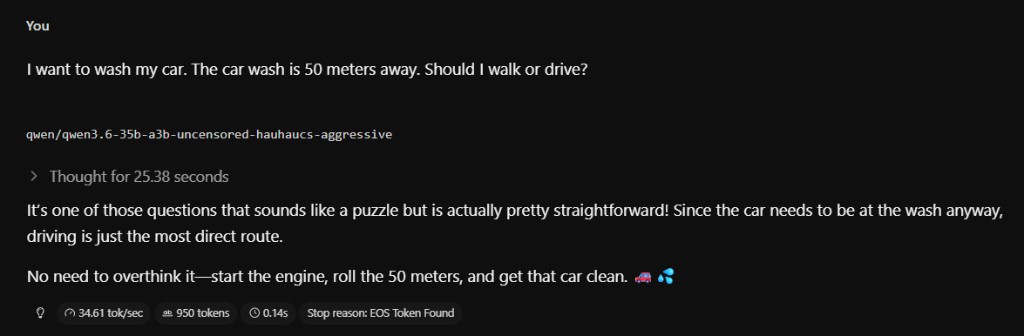
It handles reasoning well. Here it is with the classic car wash trick question (the car needs to go to the car wash, so you drive):
My LM Studio settings
Adjust for your own hardware, but this is what works on mine.
Context and offload:
Context Length:         262144
GPU Offload:            40
Advanced:
CPU Thread Pool Size:   10
Evaluation Batch Size:  4089
Unified KV Cache:       On
Flash Attention:        On
K Cache Quantization:   Q8_0
V Cache Quantization:   Q8_0
Keep Model in Memory:   On
Try mmap0:              On
Number of Experts:      8
Inference:
Enable Thinking:        On
Preserve Thinking:      On
Temperature:            0.6
Top K Sampling:         20
Top P Sampling:         0.95
Most of these are self-explanatory, but a few are worth expanding on.
Evaluation Batch Size controls how many tokens get processed in parallel during prompt processing. Higher values use more memory but speed up prefill. 4089 works for my setup.
Flash Attention reduces VRAM usage during inference with no quality trade off. Just keep it on.
Unified KV Cache shares the cache across experts in mixture-of-experts models. Saves memory on models like Qwen3.6 35B A3B.
Keep Model in Memory prevents LM Studio from unloading the model when you switch chats. Reloading a large model takes a while, so leave this on if you have the RAM.
Enable Thinking lets the model reason through a problem step by step before answering. Some models support this natively (Qwen3.6 does). It uses more tokens but the answers are noticeably better for anything requiring logic.
Preserve Thinking keeps the reasoning visible in all prior turns instead of only showing the last one. Useful if you want to see how the model arrived at earlier answers.
Using it with OpenCode
I use this model inside OpenCode for development work. You need to turn on the server in LM Studio under Server tab and then add a custom provider to your opencode.json:
{
  "$schema": "https://opencode.ai/config.json",
  "provider": {
    "lmstudio": {
      "npm": "@ai-sdk/openai-compatible",
      "name": "LM Studio (local)",
      "options": {
        "baseURL": "http://127.0.0.1:1234/v1/"
      },
      "models": {
        "qwen/qwen3.6-35b-a3b": {
          "name": "Qwen 3.6 35B A3B"
         }
      }
    }
  }
}
The model name has to match exactly what LM Studio shows in its server panel.
If you run OpenCode in WSL, localhost inside WSL doesn’t point to Windows. You need to open LM Studio’s server settings and turn on “Serve on local network.” Without this, OpenCode can’t reach the LM Studio server and you’ll get vague connection errors with zero useful information about what went wrong.